
Give jobs a permanent home, put the link where members already look, and keep using your community for questions and referrals. That is enough to launch a useful job board on Circle, Skool, Mighty Networks, Slack, or Discord.
From there, you can embed live job cards or build a custom jobs section with Cavuno’s SDK. The right choice depends on where your members spend time and how much of the website you control.
If your audience mainly follows an email publication, see how to add a paid job board to your newsletter, including setup options and pricing examples.
Platform details checked against official documentation on 17 November 2026. The SDK example below was tested in a browser against a live Cavuno board.
Make the board useful before making it elaborate
A jobs channel is a good place for conversation. A board gives members a searchable place to find roles after the announcement has scrolled away.
Start with a specific promise: remote design roles, local employers, or entry-level opportunities for people in your field. Add current jobs that fit it, check application links, and confirm permission or source terms before republishing. A small relevant selection gives you something concrete to ask members about.
For a hypothetical design community on Circle, the first version could be a public board linked from a Jobs resource post, with introductions and employer discussions kept inside Circle. Members can browse or share opportunities; employers can pay for a listing and an optional mention in the community’s roundup.
Create the board at a Cavuno address or connect your own domain, such as jobs.yourcommunity.com. Make Browse jobs, Post a job, and the route back to your community easy to find.
Before announcing it widely, ask a few members to find a relevant role on their phones. Ask an employer to review the posting offer and a moderator to handle a sample submission. Their questions will tell you more than polishing the page alone.
Choose a link, a widget, or a custom jobs page
A hosted-board link is the simplest option. The board handles browsing and employer posting, while your community sends people to it.
The jobs widget puts live cards on an existing page that accepts embeds. Generate it in Cavuno under Jobs → Embed jobs, choose your filters, and paste the iframe snippet into the page. Job clicks and searches open the full board in a new tab. The widget guide covers the settings.
The SDK gives you control over the HTML and interactions on your own website. Use it to place jobs alongside member resources, match your site’s design, and filter the list without leaving the page. There is a copyable example below.
Here is where to put each option on the main community platforms.
Circle: a Jobs post with live cards
Create a Jobs resource post with links to browse and submit roles. To include the widget, an admin on Professional or above can paste its iframe snippet into the post’s Settings → Custom HTML. Circle’s custom HTML guide documents the placement.
The cards appear below the published post, rather than in the editor. In Circle’s mobile apps, members open custom HTML through See attachment; it does not appear inline or in email notifications. Keep the normal board link in the post so members have a direct route too.
Skool: put Jobs on the group card
On Skool Pro, open Settings → Plugins → Links, choose Edit, and add the board URL with a Jobs label. Skool’s Links feature allows up to three member-visible links.
Use that persistent link alongside a launch post and occasional relevant job highlights. This guide recommends the documented link route for Skool, not an in-app SDK installation.
Mighty Networks: add Jobs to navigation
Add a custom link under Admin → Spaces & Navigation → Navigation Links. Mighty Networks supports up to four navigation links, excluding Free and the legacy Creator and Starter plans.
The link opens a new tab on the web and an in-app browser on mobile. During your pilot, follow a job through to its application destination from that mobile browser.
Slack and Discord: pin the destination, keep the discussion
In Slack, add the board as a channel resource link using + → Link, then pin an introduction with the posting rules. In Discord, pin the introduction in the relevant channel. Both actions require the appropriate permissions.
Link announcements to the current job listing and use threads for questions and referrals. Include the board in welcome resources so new members can find it without searching old messages.
Be clear about who can see the jobs
A public board can work well alongside a private community. Employers and candidates can discover the listings; members use the community to exchange context and introductions.
If you promise member-only jobs, protect access at the board itself. A member-visible link in Circle or Skool does not restrict someone who has the destination URL.
Cavuno offers whole-board password protection for shared-password access. The normal public widget does not show protected listings while that setting is enabled. Checking individual Circle or Skool memberships, including revoking access when someone leaves, requires a separate membership connection.
Announce the board with something worth opening
Choose a few relevant roles for launch, brief your moderators, and tell members where to browse and how to submit. Adapt this announcement to match your actual access policy:
Add the link to onboarding and bring it into relevant events and discussions. In its account of running the CMX Job Board, CMX describes using Goodword and recommends regular job highlights and member hiring stories. The useful lesson is to give the board a place in the community’s routine. This is CMX’s own account, not a Cavuno case study or a measured retention result.
Give moderators a short posting policy
Decide what fits before accepting submissions. This starter policy is a template to adapt to your process, not legal advice:
Sell an offer you can consistently deliver
Start with one clear package. For example, an employer might buy a 30-day listing, with an optional labelled mention in a scheduled community roundup. That is an illustrative offer; choose the price from your audience, comparable opportunities, and employer feedback.
In Cavuno, connect Stripe and create a Job posting product under Settings → Products. Set its price and duration, then use the pricing-plan guide to verify checkout, including any real-payment implications.
Put promised community mentions on your calendar. Buying a board product does not itself publish a Circle post or Slack message. Confirm the placement date and keep a record of delivery.
If members get a posting benefit, explain how you check eligibility. Cavuno employer membership refers to membership on the board, not automatic recognition of a Circle or Skool account. The pricing guide covers bundles and recurring offers when demand supports them.
Let members search alongside your resources
A member looking for a role needs more than a few highlights. This panel lets them search by keyword, combine work-arrangement and employment filters, and load more results without leaving your website. Company, location, remote eligibility and available salary details make the shortlist easier to assess.
Place it on a companion website alongside your community resources, or in a website template you control. The example below uses live listings from Robotics Engineer Jobs.
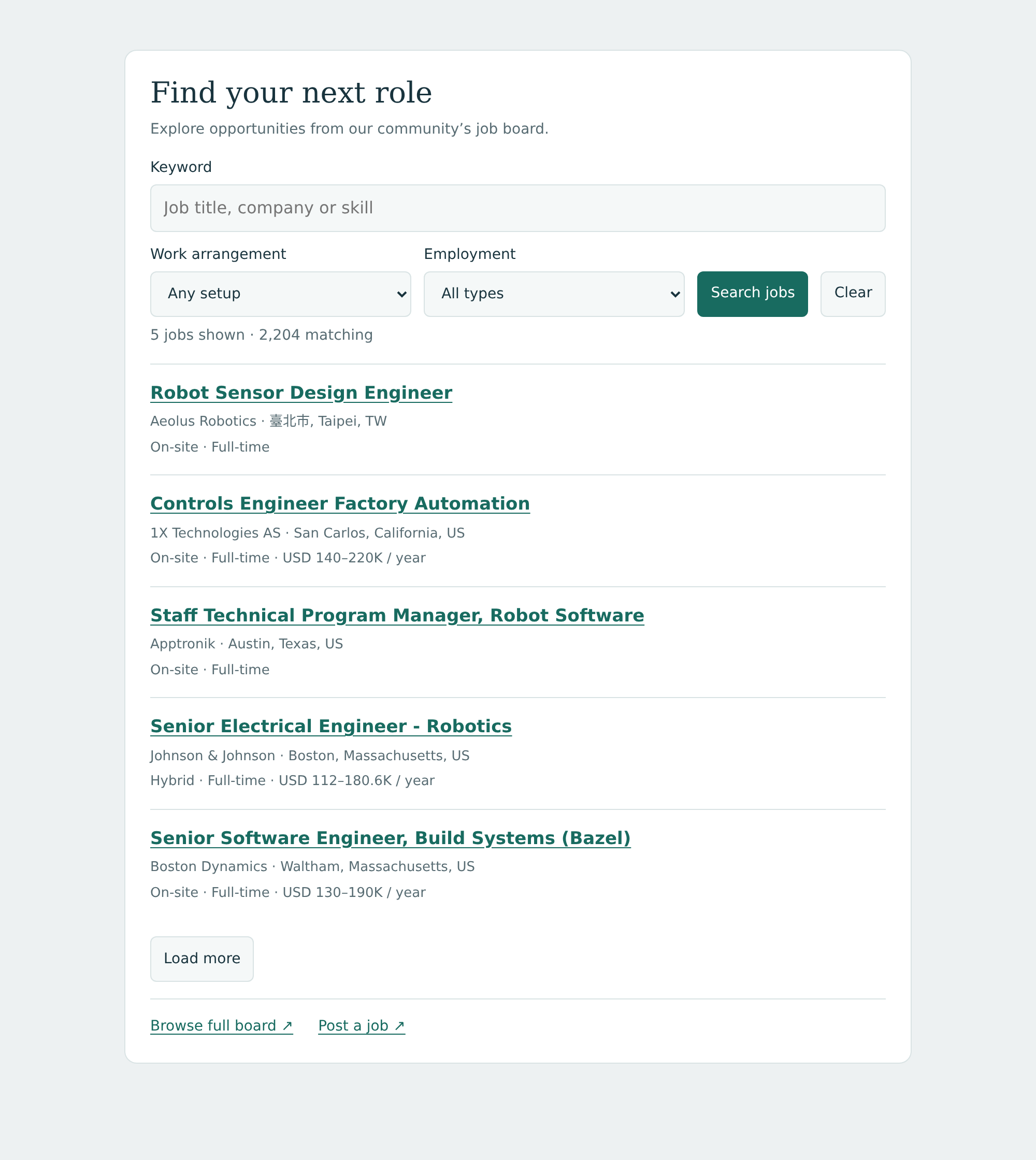
For example, a member can search for “perception,” choose Remote and Full-time, and compare the matching roles without leaving the page. Location eligibility and salary details, when supplied, stay visible in the results.
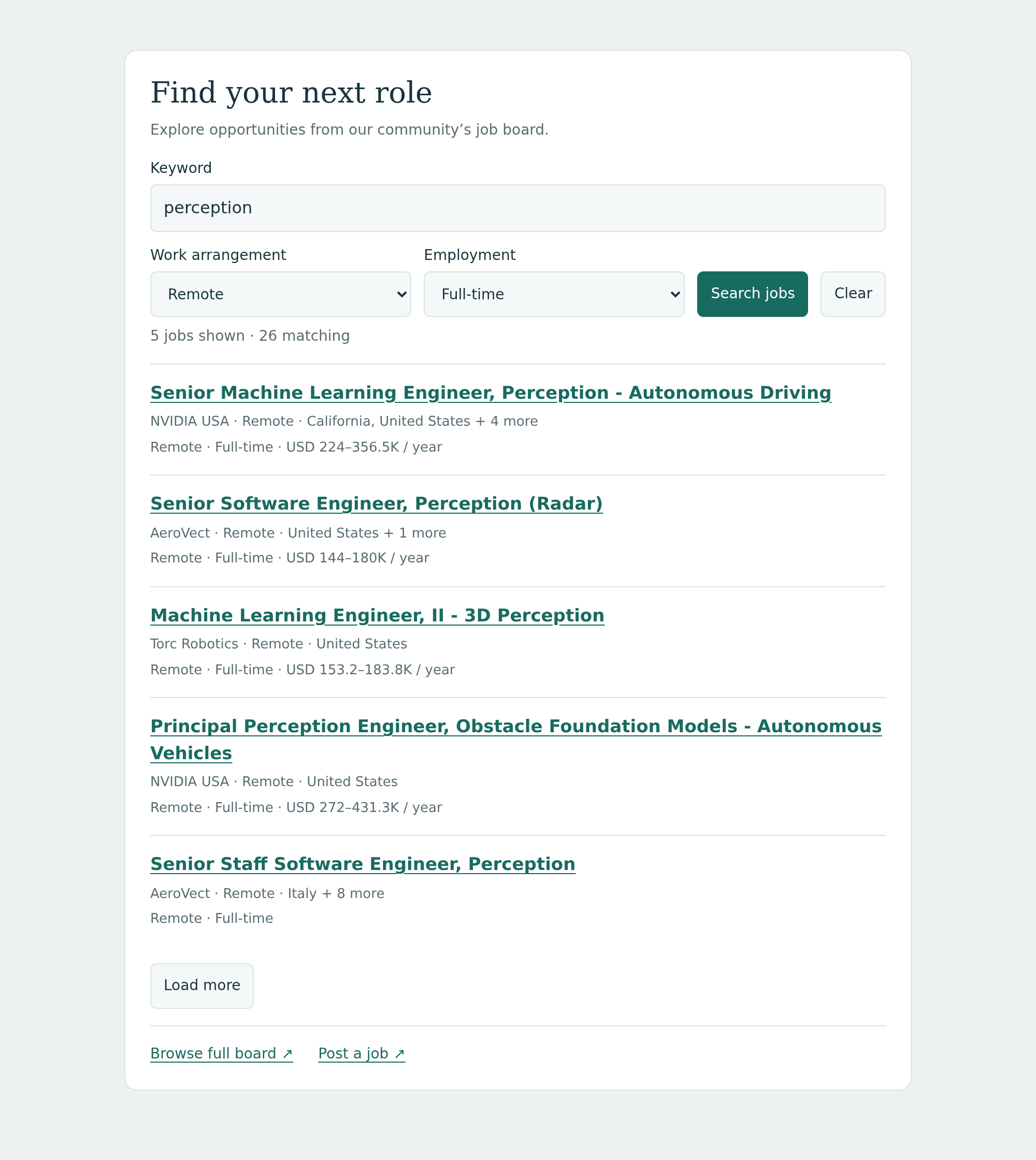
Copy the complete block into a page that permits custom JavaScript, then replace key, boardUrl and employerUrl. Use it once per page. This is the custom-website route; for Circle’s documented iframe placement use the standard widget, and for Skool use the Jobs link described earlier.
Change the heading and --accent color to fit your community. The CSS is scoped to #community-jobs; it leaves your navigation and resource pages alone. Filters apply as members change them, Enter submits a keyword search, and Clear restores the full list. Failed requests keep a route to the hosted board, with a retry button inside the panel.
Use the widget when you want a ready-made block. Use this SDK panel when you want to control the layout and keep searching and pagination on your website. Full job details and employer purchases open on the hosted board.
You need a public board on a plan with API access; the CDN guide covers script-security settings. Use only publishable keys in the browser. This panel serves public job cards: it does not check Circle or Skool membership, and the embed API is not gated by the candidate paywall.
Keep bringing members back to relevant opportunities
Before each roundup, check that the selected roles are current and fulfil any paid placements. Resolve reports, remove closed opportunities, and ask employers whether the interest was useful.
When a member finds a role through the community, ask permission to share the story. Keep measured clicks, applications, and reported hires distinct. Those conversations help you improve the board without treating page views as proof of retention.
Start with a useful selection and a visible destination. Create the board with Cavuno, make it part of your community’s routine, and use the widget or SDK when it improves how members find their next role.