
The simplest way to add a paid job board to your newsletter is to give it a home on your website, link to it from your publication, and feature a few relevant roles in each issue. Employers buy access to that audience through a listing, a newsletter mention, or both.
You can do this while keeping your newsletter on Substack, beehiiv, Ghost, Kit, or Mailchimp. Start with the offer and the jobs; choose the integration around how your readers will use them.
Running a member community too? See how to add a job board to your community for Circle, Skool, and other community platforms.
Platform details checked against official documentation on 17 November 2026. The SDK example below was tested in a browser against a live Cavuno board.
Start with jobs your readers would actually want
A useful board has the same editorial judgment as your newsletter. If readers subscribe for Canadian product-design news, give them roles relevant to that audience. Check remote eligibility and application links, and confirm permission or source terms before republishing jobs.
For a hypothetical weekly design newsletter, a first version could be a hosted board plus three selected roles in each issue. One spot is available as a labelled paid placement; the others are editorial picks. Readers get a useful shortlist, and employers have a clear offer to consider.
Give the board a recognizable address, such as jobs.yourpublication.com, and make two links easy to find: Browse jobs and Post a job. Cavuno supports a hosted address or your own domain.
Choose how jobs appear in your publication
There are three ways to connect the board:
- Link to a hosted board. Add Jobs to your navigation and link to individual roles in each issue. This is the simplest starting point.
- Embed the jobs widget. Show live job cards on a compatible website page. In Cavuno, generate it under Jobs → Embed jobs. Job clicks and searches open the full board in a new tab.
- Build a custom section with the SDK. A developer uses Cavuno’s job data to create your own layout and interactions. Choose this when you want more control over the reading and browsing experience.
The widget and SDK are website options. Inside the email itself, use readable job links, chosen manually or brought in through an RSS feed.
Substack: a Jobs link and a recurring section
Add the board through Settings → Website → Navigation bar → Add item, following Substack’s navigation guide. Then include a short jobs section in your issues.
That link-based approach fits Substack’s post editor, which does not accept custom HTML or raw iframe embeds. Keep the full board at its own address.
beehiiv: use RSS for the issue, a widget for the website
On beehiiv’s documented Pro and Enterprise plans, RSS ingestion can turn your jobs feed into newsletter content:
- Under Settings → RSS, add a new external feed using your board’s hostname followed by
/jobs/rss.xml. - Type
/rssin the post editor and select that feed. - Choose the number of jobs and layout, then preview and test the email.
Decide whether to enable Refresh feed on send. It fetches the latest items at send time, which suits a current-jobs roundup. Leave it off when you want to preserve the exact selection you reviewed. Give paid mentions their own reserved placement rather than relying on their position in the feed.
For the website, embed the Cavuno widget in beehiiv’s paid Advanced Website Builder HTML block, which supports iframes. Wrap the widget snippet in a single div, as beehiiv requires, and use Preview to check it; interactive content runs in Preview and Live mode rather than the editor.
Ghost: a Jobs page alongside your articles
Add the Cavuno widget to a Ghost Jobs page using an HTML card, then put the page in your navigation. Use ordinary links or a call-to-action card in the newsletter; web embeds do not carry through as interactive email content.
For a compact jobs section styled to your publication, use the copyable SDK example below. Put its <section> (including the scoped styles) in an HTML card on the web page, then put both <script> blocks, in order, in that page’s footer Code Injection. Check the published web page; this is not an interactive email block.
Kit and Mailchimp: curate first, automate when useful
For a few roles inside a mixed editorial issue, manual links are a straightforward choice. Both platforms also document RSS workflows:
- Kit: Add the feed under Automation → RSS, choose Digest, and review the resulting Broadcast. Keep automatic sending off while testing. This creates an RSS Broadcast, rather than inserting jobs into an existing issue.
- Mailchimp: Where your account supports it, use Share blog updates via RSS under automation flow templates. Preview and test before starting the automation.
One feed detail matters: Cavuno’s RSS feed contains up to 50 recent published jobs, without category or location filtering. Widget filters do not change it. If your newsletter covers only part of a broader board, curate the selection.
Put a few opportunities alongside your articles
A reader browsing your publication may not be looking for work, but a relevant role can still catch their eye. Place this compact jobs section below an article or beside your newsletter signup. It shows three opportunities with company, location and salary when supplied, followed by routes to browse or post a job.
The example below uses real listings from Robotics Engineer Jobs. The selection follows the board’s featured ranking; it is not a hand-picked shortlist or guaranteed newest-first feed.
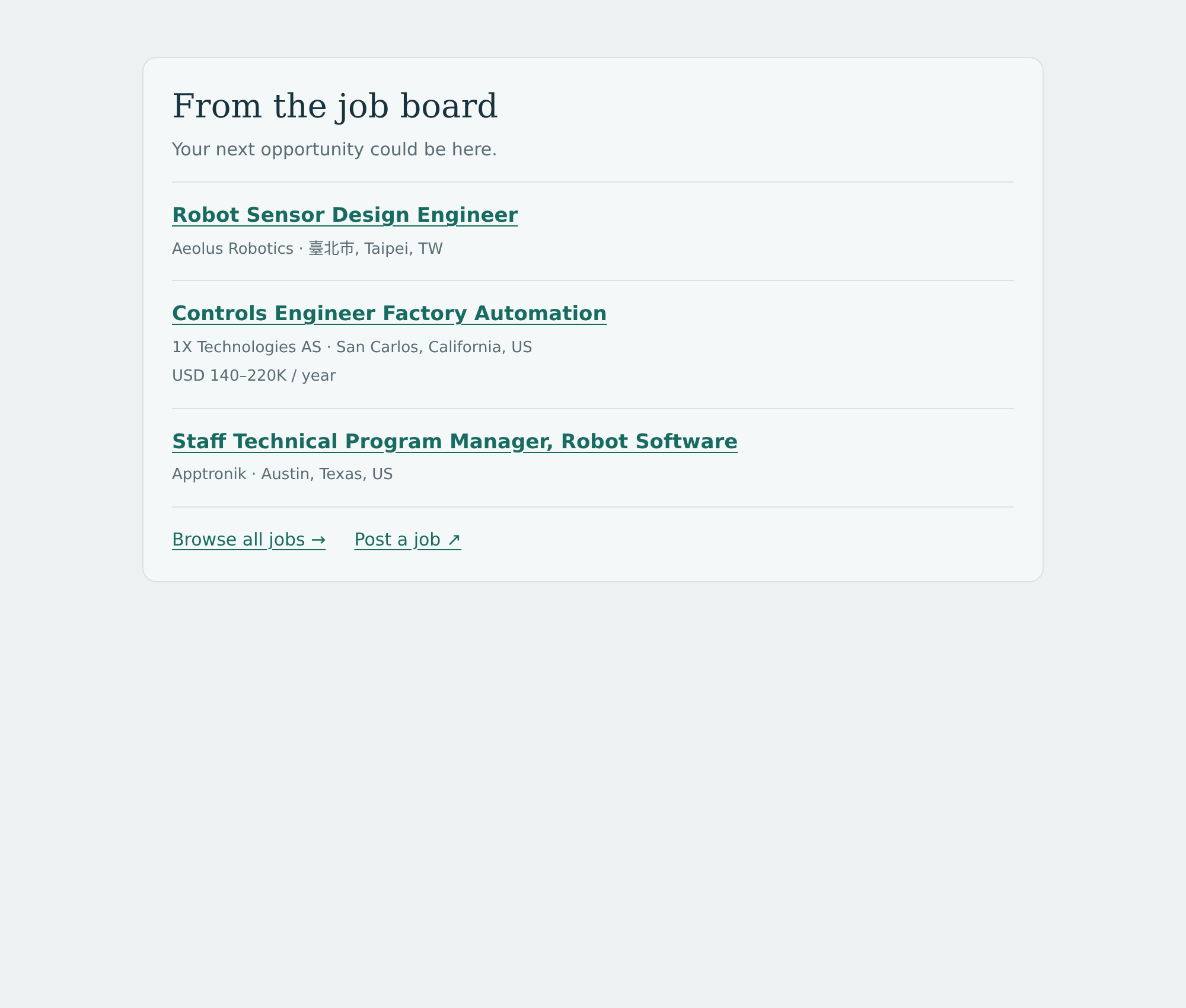
Copy the whole block below into a website template or HTML area that allows JavaScript. Replace key, boardUrl and employerUrl with your publishable board key and public destinations. Use it once per page. In Ghost, split the section and scripts as described above. For email issues and Substack posts, use the roundup template later in this guide instead.
Change the heading and --accent color to suit your publication. The CSS targets only #newsletter-jobs, so it does not restyle the surrounding articles. The SDK gives you control over this placement and presentation; choose the standard widget if its ready-made layout suits you.
You need a public board on a plan with API access. Use only a publishable key in browser code; the CDN guide covers script-security settings. These are public job cards, not subscriber-only content. Job details and employer purchases stay on the hosted board.
How much should you charge?
Price a specific offer. A 30-day listing, one email mention, and a prominent sponsored block give employers different exposure.
Publisher rate cards show how those packages can vary:
| Publisher | Advertised offer |
|---|---|
| Meeting C++ | €199 above free jobs; €299 for top-three weekly placement; €399 for top-three placement in both monthly and weekly newsletters. Excludes VAT |
| Music Business Worldwide | US$180 Basic listing for up to four weeks; US$325 Enhanced and US$400 Premium for up to eight weeks, with different promotional inclusions. Excludes tax |
| Social Work E-News | US$75 for a newsletter job ad of up to 150 words, with a discount for board advertisers. The page includes 2015 audience data and no clear rate-update date; confirm the price before relying on it |
These offers were visible on 17 November 2026. They are advertised prices, not verified sales or hiring results, and their different audiences and inclusions make a single “average rate” unhelpful.
For our hypothetical design newsletter, an illustrative opening offer might be US$99 for a 30-day listing or US$199 for that listing plus one labelled mention in an agreed issue. Two listings and three bundles would total US$795 gross, before costs and tax treatment. That is an example calculation, not a revenue forecast.
Choose your own starting price from employer conversations, comparable offers, and relevant reader engagement. Existing sponsorship rates can inform the email portion. After several comparable sales, ask whether employers received suitable interest and would buy again before expanding into bundles or subscriptions.
In Cavuno, connect Stripe and create a Job posting product under Settings → Products. Set the price and duration, then follow the pricing-plan guide to verify checkout, including any real-payment implications. You still schedule and deliver the newsletter mention yourself.
Make the jobs section easy to scan
Readers need the role, employer, location, and a reason to click. Keep the paid label visible and give employers their own posting link.
Adapt this for your next issue:
Check every link before sending. If a placement is paid, record the promised issue date and confirm there is space before taking the booking.
Find the first employers, then learn from the results
Start with employers who know your publication and have relevant vacancies. Current sponsors are worth approaching, though their recruitment budget may belong to someone else.
Keep the invitation specific:
Add audience or engagement figures only when you can support them. If this is your first jobs offer, describe it as a pilot.
After the placement, tell the employer what ran and share the results you can measure. Keep newsletter clicks, application clicks, completed applications, and hires separate. Ask readers whether the jobs fit, and employers whether the interest was useful.
Keep newsletter subscriptions and job-alert consent separate too; adding a feed or widget does not synchronize those permissions.
Your first version needs relevant jobs, an easy posting route, and a place in the next issue. Create the board with Cavuno, then use reader and employer feedback to decide whether a widget or custom page would make it better.